Recording Rides
Hit record, pocket the phone, ride.
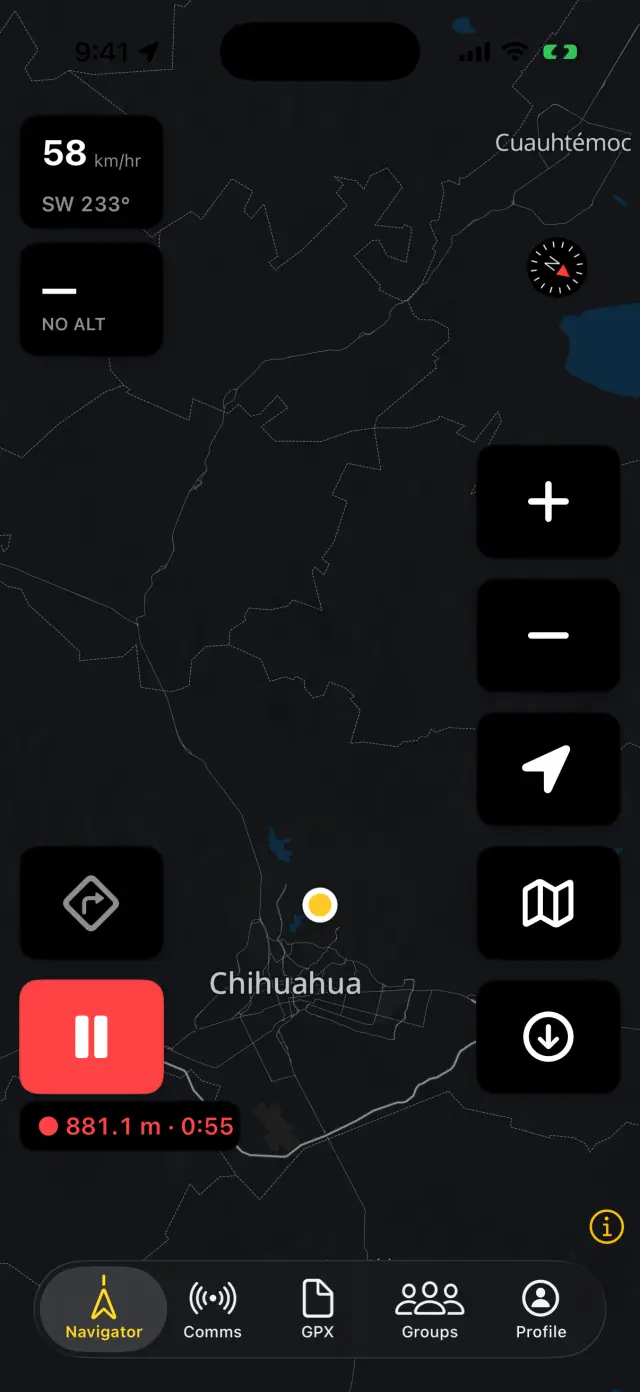
Start, pause, stop
- Tap the record button on the Navigator map. It turns red and a pill starts counting distance and time.
- Tap again to pause (lunch, border crossing, tire plug) — tap once more to resume. Paused time stays out of your moving stats.
- Long-press (or double-tap) the button to finish: "Stop recording?" → Save Recording or Discard. Name it (or keep "Ride — <date>") and you're done.
Recording runs happily in the background — screen off, phone in a pocket or tank bag. Speed, elevation, grade, and GPS accuracy are all captured.
Where the ride goes
Saved rides upload themselves to your GPX library. No signal at the trailhead? It waits — you'll see "Waiting for network" in the GPX tab and it goes up the moment you're back in coverage. If an upload fails, tap it to retry.
Once uploaded, the ride gets the full treatment: distance, elevation gain/loss, moving vs. stopped time, speeds, biggest climb, elevation chart — and it counts toward your Dashboard records and streaks.
Good to know
- If the app dies mid-ride (or the phone does), the recording survives — it picks the ride back up on relaunch.
- Recording and navigation are independent: record while navigating, or just record.
- On CarPlay / Android Auto the recording controls are on the car screen — Save Ride without touching the phone.